
WhyFi
A macOS menu-bar utility that continuously measures your wireless link and separates problems into Wi-Fi signal, router latency, internet quality, and DNS so you know what to fix instead of staring at Apple’s bar graph.
Typical Mac workflow
You install WhyFi from whyfi.network, enter your license key, and leave it running in the menu bar. The icon uses a simple face and color coding — green, orange, or red — tied to a 0–100 WhyFi Score that weighs latency, jitter, and packet loss rather than a single worst metric. Click the icon to read signal strength, noise floor, SNR, transmit rate, router ping, internet ping, jitter, and DNS lookup time, with short advice for each layer: move closer for weak Wi-Fi, restart the router for high LAN latency, or accept that a high WAN ping is mostly an ISP issue.
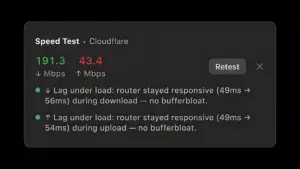
When you need more than passive monitoring, WhyFi Radar updates four times per second as you walk around a room and scores each spot so you can find a stronger location without guessing. A built-in speed test runs through Cloudflare and includes bufferbloat detection, which matters before video calls or screen sharing. A channel scanner highlights congested bands, one-click DNS switching jumps to Google or Cloudflare resolvers, and captive-portal detection flags hotel or airport login pages. You can export a shareable stats image or copy a plain-text diagnostic report to paste into an AI assistant for follow-up troubleshooting.
Licensing and version 1.4.3
WhyFi costs $10 as a one-time purchase with no subscription; according to the vendor, sales are donated to Jet Set Petz, a Bali charity that vaccinates and sterilizes street animals. The app requires macOS 13 Ventura or later and runs on Apple Silicon and Intel Macs. Version 1.4.3 (build 23), released 2 July 2026, rebuilds the speed test for better accuracy and usability and removes the TCP connections metric the developer considered unhelpful. Updates arrive through the vendor’s Sparkle feed, and a Homebrew cask is also available for installation.