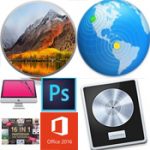
Description’s for macOS High Sierra 10.13.3 and compatible Utilities
macOS High Sierra 10.13.3 and compatible Utilities Includes:
Adobe Photoshop CC 2018 v19.1.0 [Multi/Ru]
CleanMyMac 3.9.3 [Multi/Ru]
Endurance Antivirus 4.1.5 [En]
Endurance 1.1 [En]
Logic Pro X 10.4.0 [En]
macOS Server 5.5 [En]
Microsoft Office Standard 2016 v16.9 (64bit) [Multi/Ru]
UninstallPKG 1.1.5 [En]
16 in 1 Photoshop Addons Bundle [En]
Installation & Troubleshooting FAQ
7 questions
Common issues when installing macOS apps
System Integrity Protection (SIP) shields core macOS files from modification. Some patched apps and installers need SIP disabled temporarily — learn what SIP protects, the risks, and how to disable and re-enable it safely.
macOS also blocks Terminal from protected folders until Full Disk Access is granted. Many install scripts and activation tools require this permission on Ventura, Sonoma, Sequoia, and older macOS versions.
Gatekeeper and quarantine can stop modified apps such as macOS High Sierra 10.13.3 and compatible Utilities 10.13.3 with “damaged” or “unidentified developer” warnings. You will learn automatic fixes, manual de-quarantine with xattr, and when to adjust security settings safely.
Launchpad changed in macOS 26, so opening and organizing apps works differently. Discover practical app launchers and alternatives to find and run your apps on the latest macOS.
“App Not Downloaded from Mac App Store” — macOS blocks the app when security settings allow downloads from the App Store only. Change Privacy & Security to permit apps from identified developers as well.
“Unidentified developer” — apps not registered with Apple trigger a warning on first launch. Use the Control-click → Open workaround to add a one-time security exception.
“Cannot verify for malicious software” — mandatory notarization can block unverified apps. Use Open Anyway in Privacy & Security to approve the app once and add it to exceptions.
“macOS High Sierra 10.13.3 and compatible Utilities is damaged and can’t be opened” — quarantine flags or post-download changes trigger this error. Fix it with the Auto Fix script or the sudo xattr -r -c de-quarantine command in Terminal.
“Disk image corrupted” — incomplete or interrupted downloads often cause corrupted DMG errors. Use a download manager with multi-threaded, resumable downloads to get a clean installer file.
Adobe Creative Cloud local installers may fail from the GUI — right-click Install, open Contents/MacOS, and run the Unix executable manually to start the setup.
Adobe Error 1 (Rosetta required) appears on Apple Silicon when Rosetta is missing. Install it with /usr/sbin/softwareupdate --install-rosetta --agree-to-license in Terminal, then retry the Adobe installer.
CCXProcess install errors mean the Creative Cloud component cannot run Intel code on Apple Silicon without Rosetta — install Rosetta the same way, wait for success, and run the Adobe setup again.
Some Monter Group releases support only Apple Silicon (M1, M2, M3, and newer) and cannot install on Intel Macs due to architecture mismatch — use universal builds or releases matched to your processor (Adobe Activation Tool, QiuChenly, RiD).