

AIMP v5.40.2675 for Mac (Wineskin)
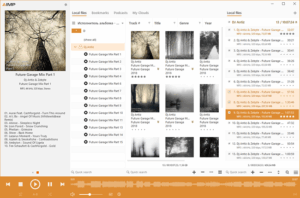
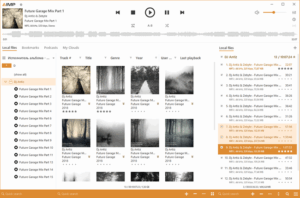
AIMP by Artem Izmaylov is a powerful free audio player for Windows with high-quality sound output, an 18-band equalizer, audio effects, lossless format support, internet radio, tag editor, audio converter, and a music library.
This build is packaged with Wineskin to run on macOS — it’s the native Windows version of AIMP wrapped in a Wine-based macOS container, not an Apple-Silicon native app.
What’s new in v5.40.2675 (27 Apr 2025)
- General: updated localizations
- Audio Converter: Monkey’s Audio codec updated to v11.08
- Sound Engine: faster waveform building
- Fixed: bundled libVorbis conflicted with plugins (5.40 regression)
- Fixed: Sound Engine — a fragment with the old sample rate was audible after a sample-rate change (5.40 regression)
- Fixed: Playlist Manager — switching tracks put the manager into a “modified” state
- Fixed: Tag Editor — MP4 unnamed metadata field caused a read error
- Fixed: Skin Engine — mouse wheel not forwarded from visualization window to main window (5.40 regression)
- Fixed: Music Library — Alt+Click on a tree collapse button misbehaved
- Fixed: issues from incoming crash reports
What AIMP offers
- Wide format support: MP3, AAC, M4A, FLAC, ALAC, APE, OGG/Opus, WavPack, TAK, DSD, WAV, and more
- 18-band equalizer, Reverb, Echo, Flanger, Chorus, speed/tempo/pitch control
- Audio converter and tag editor with ReplayGain and batch operations
- Music Library, smart playlists, bookmarks, internet radio recording
- Skinnable UI; plugins API; multi-language interface
Requirements & notes (Wineskin build)
- Version: 5.40 build 2675 (27 Apr 2025)
- Source app: Windows; runtime: Wineskin wrapper for macOS
- Runs on Apple Silicon via Rosetta/Wine translation; performance and integration depend on the wrapper
- Some Windows-specific features (e.g. ASIO, certain plugins) may be limited or unavailable in Wine
Official (Windows source): aimp.ru · changelog 5.40.2675



Almost 600MB for a Winamp clone?
Use Re:Amp (re-amp.ru) for free instead (14MB)
Run the downloaded image and drag the application shortcut to the Applications folder.
After copying is complete, you can launch the application from Launchpad.
If you encounter an error when launching the game, run the “Fix” file inside the image.
How do I increase the interface size? Right-click the application.
Select “Show Package Contents” from the context menu.
Go to the “Contents” folder and run KegworksConfig.
Go to the “Tools” tab and click “Configuration Utility (winecfg)”.
The configuration window will open. Go to the “Graphics” tab and change the screen resolution to a value between 122 and 144.
Click “Apply” or “OK” and run the application.
The interface size will increase.