
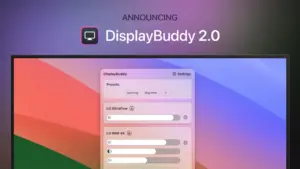
DisplayBuddy v3.6.1 for Mac
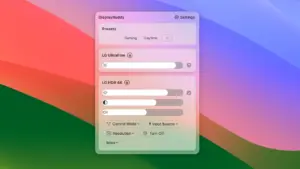
DisplayBuddy is a native macOS utility for controlling external monitors from software—brightness, contrast, volume, input source, layout, and more—without reaching for on-screen display menus.
Version 3.6.1 (11 May 2026) is a maintenance release; the headline in 3.6.0 was UI localization and a raised minimum OS requirement.
What DisplayBuddy does
- DDC/CI control for compatible displays—sliders, keyboard shortcuts, and menu-bar access
- Presets — save and restore multi-monitor settings (resolution, rotation, brightness, input, sync, HDR, True Tone, Night Shift, and more)
- Schedules — auto-activate presets by time, sunrise/sunset, charger state, Dark Mode, or app launch
- Sync — mirror brightness/contrast across selected displays
- Support for Apple displays, Samsung Smart Monitors, Studio Display XDR UltraBright, and selected smart-monitor integrations
- CLI & MCP (since 3.3) for automation and agent workflows
- Control Center presets, Spotlight/App Intents, and Siri shortcuts (DisplayBuddy 3)
What’s new in v3.6.1
- Fixes an issue with the DisplayBuddy CLI on Setapp
- Fixes a broken link to the getting-started guide in Settings
Recent (3.6.0): French, Spanish, German, Traditional and Simplified Chinese UI; macOS 12+ now required.
Requirements & licensing
- Version: 3.6.1
- Platform: macOS 12 or later; native Apple Silicon support
- Hardware: External monitors with DDC/CI or supported smart-monitor / Apple display integrations (varies by model)
- License: one-time purchase from the developer; major updates included; also available via Setapp
Official: DisplayBuddy · Release notes




No good. Screen turns black upon app launch.
The previous design of the site was more understandable and convenient. With the new changes it is confusing and there is not enough information about the programs and their sites. What is the logic behind doing it like this?
Fair point — and thanks for saying it straight. I’d rather hear this than get silence.
Honestly, the site still looks pretty much the same to me. I wasn’t trying to reinvent everything, just fix what was annoying me day to day — blocks sitting weird, the menu acting up, layout all over the place. I wanted it cleaner and easier to click through.
I also added a few things I thought would actually help: old app versions, Q&A (with links from each app page), ratings, download counts — so you can see what’s popular and grab the version you need without digging forever.
If something’s still confusing, or you feel like there’s not enough info about a program or its official site, tell me what’s missing. I’m happy to listen — if it’s something I can pull off, I’ll do my best.
Thanks!!
Run the downloaded image and drag the application to the Applications folder shortcut.
Once the copy is complete, you can launch the application from Launchpad.